
Click on one of the links below to go straight to the question you would like to read. If you have any suggestions for further content in this section please email beccy@hansardsociety.org.uk
Adding a photo to a post
Adding a link to a post
Removing a link from a post
Adding tags to a post
Spellchecking a post
Publishing a post in the future
Comments
Viewing all comments
Approving comments
Editing comments
Replying to a comment
Spam and trash
Further help
Adding a photo to a post
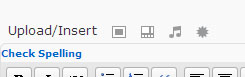
photo icon
Click in the text where you would like the photo to start, at the beginning of a paragraph is usually best. Then click the square box icon (see image left) to the right hand-side of ‘Upload/Insert’ at the top of the editing box. A new box will pop up asking where your photo is currently located.
There are 3 places to use photos from:
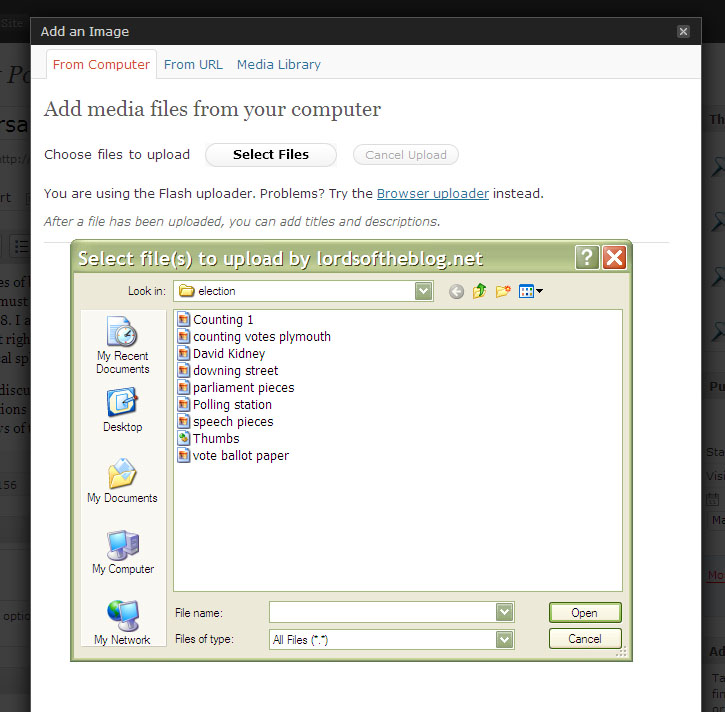 From your computer (see image left) – click select files then find the location of your photo eg. My Documents. Once you have found the photo click on it and select open on the bottom right-hand corner of the box.
From URL – insert URL in the ‘URL Image’ box and add a title in the ‘URL Title’ box.
From media library – find the image you want and then click the ‘show’ link on the right hand side.
You can then change the title of the photo and add a caption (this will be visible on your post) by typing in the relevant boxes. You can also change the size and alignment of the photo by selecting the option you require at the bottom of this box. Once you’re happy with the placement and size of you photo click insert into post. If you wish to amend the caption or placement of your photo click on the image and then click the icon with a mountain on it. The previous options will reappear.
You can also add photos or view photos in the media library by clicking on the media button on the left hand-side of your post.
Adding a link to a post

URL box
To add a link to a post highlight the URL (see image above) you want to link to and then press ‘Ctrl+C’. This will copy the link.

link icon
Highlight in the text the words you would like to be the link eg. ‘House of Lords Report on Communication’ and then click on the link icon (see image left) at the top of the editing box. A box will pop up – click in the text box where it says ‘Link URL’ and press ‘Ctrl+V’ to paste the URL.
All URL’s must have this – ‘http://’ – code at the very beginning eg. http://lordsoftheblog.net If your link is not working check that this code is at the beginning of the URL in the link box.
Once you have pasted the URL into the box select ‘Target’ as ‘Open link in a new window’ then click ‘insert’.
Removing a link from a post
To remove a link click somewhere on it and click the broken link icon. The link will then be removed but the original text will stay.
Adding tags to a post
Tags are really important to add to your post as they enable people to find information that they’re interested in much quicker through searching on specific issues or themes. It’s a bit like an index and as the blog grows they become even more important. To add these to your post you can either; choose from the list by clicking on the link that says ‘choose from the most used tags’ and tick the tags you want to use, or add words or phrases into the box, separating each tag with a comma than click add once you have finished typing them all in.
Spellchecking a post
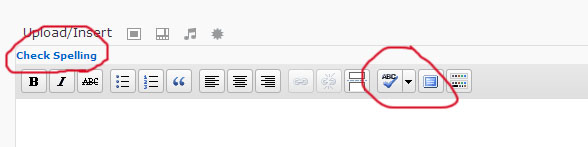
spellcheck buttons
There are two ways to check the spelling in your post (see image above). You can use either the blue writing that says ‘Check Spelling’ to the left of the editing box or the ABC icon to the right hand side of the editing box.
Publishing a post in the future
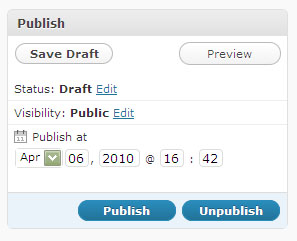
date box for publishing
You can now set your posts to be published in the future. This can be useful if you are away from your computer and would still like to post.
Once you are happy with your post go to the box on the right that says publish (see image left) and set the time and date you’d like your post to appear. Then click publish. The post should change to scheduled rather than draft.
Comments
As a default most users will now only see the comments that correspond with their own posts (however you can see all comments if you wish). You have the responsibility for approving the comments related to your posts. Comments can be viewed from any page in the admin part of the site. Click on ‘My Comments’ on the left-hand side of the page and your comments will appear. All unapproved comments will be shown in yellow, those that have been approved will be white.
Viewing all comments
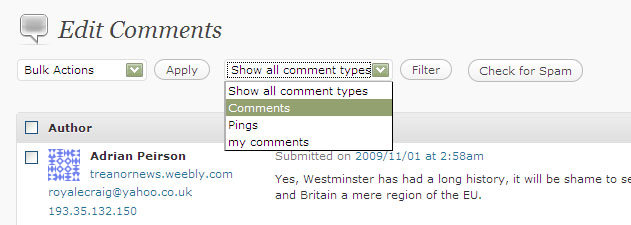 The default is set for each user to see only comments related to posts authored by them. To view all comments relating to all posts click ‘comments’ in the drop down box (see image above) at the top of the comments page and click ‘filter’. To only see your own comments click ‘my comments’ in the same drop down box and click ‘filter’.
Approving comments
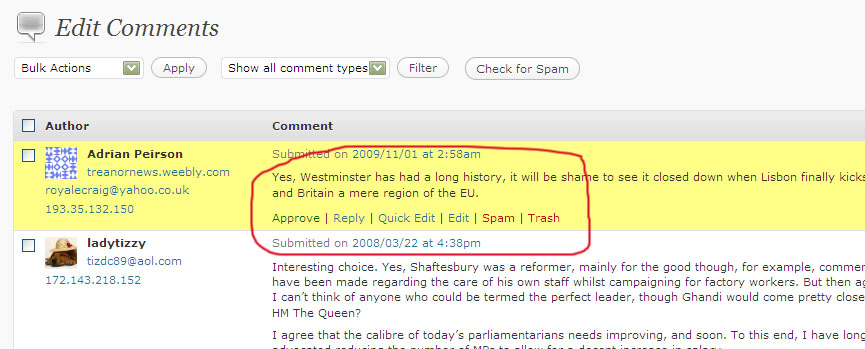 To approve a comment, hover your mouse over the comment (see image above) and click the ‘approve’ button. The comment will now turn from yellow to white. To unapproved hover over the comment and click ‘unapprove’.
Editing comments
Generally comments should not be edited but if the is for example a swear word in an otherwise acceptable post you may want to remove this and then approve the post. Hover over the comment and click ‘edit’ or ‘quick edit’ you can then amend the post by writing in the text box. Click ‘update comment’ when you are happy with the changes.
Replying to a comment
To reply to a specific comment hover over the comment and click ‘reply’. A box will then pop up. Insert the text in here and then click ‘submit reply’. If you no longer want to reply click the ‘cancel’ button on the bottom left-hand side of the text box.
Spam and trash
If you find a comment that is spam (often including lots of hyperlinks, copied text or generic comments) then hover over the comment and click ‘spam’. This should help the spam filter learn that comments from this user are spam – moving them into the spam folder automatically in future.
Further help
If you’d like support or advice about the project that isn’t contained in the FAQ section please contact Beccy Allen at the Hansard Society on 020 7438 1214 or at r.allen@hansard.lse.ac.uk
If your query is not answered by our FAQs please don’t hesitate to contact us – that’s what we’re here for!